How to hide your location on Life360 without them knowing
Life360 makes hiding obvious. Pause sharing and “Location Sharing Paused” appears under your name for the whole circle. Every built-in way to disappear leaves a mark someone can see. The one approach that does not is to leave sharing on and quietly change the location your phone reports underneath. Here is exactly how it works, what your circle can and cannot see, and how to use it responsibly on a device and accounts you own.
Why pausing or turning off Life360 gives you away
People look for a way to hide on Life360 for ordinary reasons: a partner who never agreed to live tracking, an adult who simply does not think every stop needs a witness, someone who wants one evening that is not narrated. The problem is that Life360 was built so that hiding is loud. Every switch it gives you to disappear is one your circle can see:
- Pause Location Sharing puts “Location Sharing Paused” under your name and leaves your pin frozen where it was, for anyone who opens the app.
- Turn sharing off and you get the same thing: Life360 treats it as pausing, with the same label.
- Leave the circle and you simply vanish from the map, which is the loudest signal of all and the hardest to explain.
- Bubbles (sharing an approximate area instead of a precise pin) draws a visible circle on the map, so people can tell you chose to blur yourself.
- Phone off, airplane mode, or data off leaves a stale pin and a “phone off” style status that anyone watching will notice the moment your dot stops moving.
Notice the pattern: every one of these removes your location, and a removed location is conspicuous. The fix is not to remove it. The fix is to leave Life360 exactly as it is and change what it reports underneath, so the map keeps showing a normal, living pin in a place that fits your story.
Every way to hide on Life360, compared
Here is what your circle actually sees for each method people try, and whether it leaves a tell:
| Method | What your circle sees | Verdict |
|---|---|---|
| Pause sharing | “Location Sharing Paused” under your name, and a frozen pin | ✗ Instantly obvious |
| Turn sharing off | The same paused label: Life360 treats it as pausing | ✗ Instantly obvious |
| Leave the circle | You disappear from the map completely | ✗ The loudest signal |
| Bubbles | A fuzzy circle drawn around your area instead of a precise pin | ✗ Shows you blurred yourself |
| Airplane mode / kill data | Pin freezes on your last spot, then a “phone off” status | ✗ Frozen-pin tell |
| Turn off Location Services | “Location not available” on your card | ✗ Obvious gap |
| Second phone at home | A real pin at home, until your plans change | △ Fragile, easy to slip |
| Change the reported location | A normal, precise, live pin at the place you chose, updating like any other day | ✓ Nothing on the card itself; how it moves is what gets judged |
Only the last row keeps the card looking completely ordinary. The rest of this guide is about doing that one well.
What Life360 actually shows your circle
Before you hide anything, it helps to know exactly what people can see on your card, because a believable hide has to satisfy all of it at once:
- Your live pin and street address, down to the building.
- A last-updated timestamp. A frozen one (“updated 2 hours ago” while everyone else is live) is the single most common giveaway.
- Battery percentage and charging status, which is why a sudden “phone off” reads as suspicious.
- Driving, speed, and weekly driving reports on plans that include them.
- Arrivals and departures at saved Places, which fire a notification the moment your pin crosses the geofence.
- Location history and breadcrumbs on paid circles, so gaps in the timeline are visible after the fact, not just live.
Pausing fails the timestamp test. Bubbles fails the precise-pin test. Turning sharing off fails all of them. Changing the reported location is the only approach that passes every one: precise pin, moving timestamp, continuous history, and a place that matches what you said.
The stealth method: leave sharing on, change the location
Instead of touching any Life360 setting, you change the GPS location your iPhone reports to iOS itself. Life360 does not have a private channel to your hardware. It reads the same location that Maps, the weather app, and every other app reads, the one iOS hands out. Change that, and Life360 has no choice but to show a normal, precise, continuously updating pin, just at a place you picked.
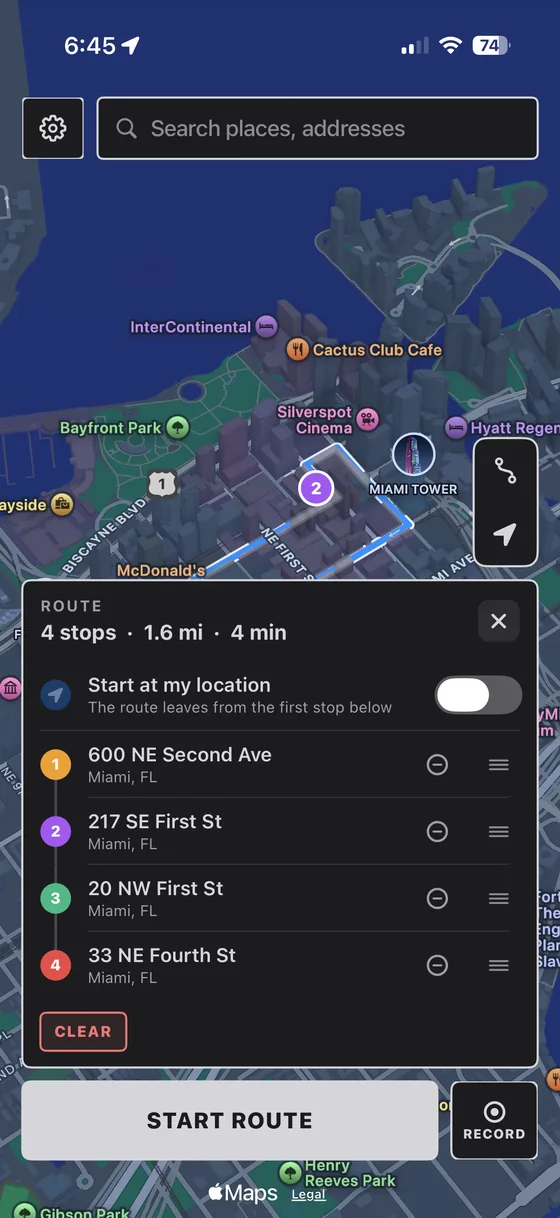
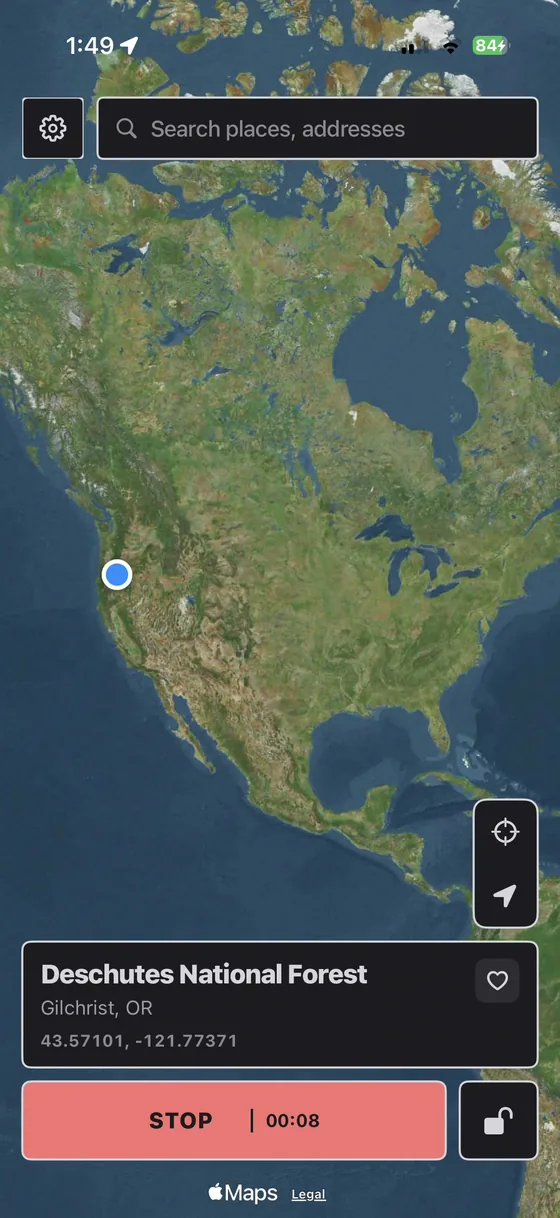
This is what a location spoofer does, and PinDrift does it cleanly. It sets the location at the source over Apple’s own developer connection, the same kind Xcode uses, with no jailbreak and no change to iOS itself: from your Windows PC or Mac, or from the PinDrift iPhone app, which your computer installs once and which then needs no computer. You pair once over USB; after that you can drive it wirelessly on your own network, or from your phone over a connection you control. For a deeper look at the mechanism, see how iPhone location spoofing works.
Because sharing never turns off and the phone keeps reporting a fresh fix, Life360 never posts a “paused” or “off” message, your timestamp keeps ticking, and your history fills in normally. To your circle it looks like an ordinary day.
Step by step
- Install PinDrift on your PC or Mac. Windows 10/11 or macOS 13+. It can install the PinDrift iPhone app, which gives you 30 free minutes a day with no card and no account, so you can confirm it works with your iPhone before paying.
- Plug your iPhone in once and pair. One USB pairing and a quick Developer Mode toggle that the app walks you through, then you can go fully wireless on your network.
- Leave Life360 alone. Do not pause, do not switch to Bubbles, do not open the sharing settings at all. Keep it fully on. This is the whole point.
- Drop a pin on a believable spot. Home, work, the gym, a friend’s place, anywhere you could plausibly be right now.
- Set the location. Life360 updates to that pin within seconds and keeps refreshing like normal, with a live timestamp.
- Add movement if you want. Draw a walking, cycling, or driving route so you drift between real places instead of standing on one dot all evening.
Make it believable (this is the part people get wrong)
The tool is the easy part. Not being noticed is about the story, and almost everyone who gets noticed gets noticed for a realism mistake, not because Life360 caught a fake fix. A few rules:
- Do not jump instantly across the map. Snapping from your couch to another part of town in one refresh looks wrong. Set the believable location before you leave, or use a route so the move is gradual.
- Do not freeze on one pin for hours. Real people drift a little. A slow route, or shifting between two nearby real places, keeps it natural and the timestamp alive.
- Match what you told people. If you said you are at the library, pin the library, not a street two blocks away. The story and the map have to agree.
- Mind your saved Places. Arrival and departure alerts fire on a geofence. Set your believable pin before you actually cross one of those boundaries so an alert never fires at the wrong moment.
- Keep battery and data on. A “phone off” status invites the exact question you are trying to avoid.
- Match driving reports to the story. A static pin reads as “not driving.” If your story involves a drive, run a route at a driving speed and it shows up as a normal trip instead of a teleport.
Real scenarios, done right
You said you are studying
Pin the library, add a little life
Set your location on the library before you actually head elsewhere, so no departure alert fires from home at the wrong time. Leave the pin there, or draw a tiny walking loop around the block so the timestamp keeps moving. To anyone checking, you arrived and stayed put, exactly as expected.
A night out you did not mention
Set the believable spot before you go
Choose a place that fits, a friend’s house, your own home, the gym, and set it before you leave. If you need to look like you traveled there, run a route at walking or driving speed so the move is gradual rather than a jump. Then let it sit naturally for the evening.
A weekend trip
Make the drive look like a drive
Draw a route at driving speed toward your believable destination so Life360 logs a normal trip, complete with a realistic timeline, instead of an impossible instant jump. Once “arrived,” keep the pin around that area with small movements rather than freezing it on one dot for two days.
Ghost mode, airplane mode, and the tricks that tip people off
A lot of advice floating around does not work, or works in a way your circle can see. Quick reality check:
- “Life360 ghost mode.” There is no invisible ghost mode inside the app. Bubbles is the closest built-in option and it still paints a visible circle, so people know you blurred yourself.
- Airplane mode or killing data. Stops the phone reporting, which freezes your pin and then flips you to a “phone off” status. A frozen dot is the first thing anyone watching notices.
- GPS jammers. Illegal in most places, and they just blank your location, which is the same loud tell as pausing.
- A second phone left at home. Works right up until plans change and you need to be in two places, which is exactly when it fails.
- Random “fake GPS” apps. On iPhone these are unreliable without a jailbreak, and the sloppy ones jump or stutter in ways that look wrong on the map.
Changing the location your phone reports, at the device level, is the only approach where the card keeps looking completely normal: precise pin, live timestamp, continuous history, no flags.
Can Life360 detect it?
Life360 runs as an ordinary app. It does not have a way to look “under” the GPS and see how the location was produced; it receives whatever location iOS hands it, and PinDrift changes that at the iOS level. Life360 does not publish any spoof check, and we know of no in-app warning a device-level location change trips. That is not a promise: Life360 can change what it checks whenever it likes, without announcing it. What actually gets people caught is the realism mistakes in the section above, not the app catching a fake fix. And because your iPhone is never jailbroken and iOS itself is never modified, your iPhone stays completely stock and keeps getting updates.
PinDrift is a location-privacy tool for your own iPhone and your own accounts. Use it that way, and mind any agreements you have with the people in your circle. See our acceptable use and disclaimer for the details.
Frequently asked questions
Does Life360 notify others when you hide your location?
Pausing or turning off sharing does not send a push notification, but it puts “Location Sharing Paused” under your name for anyone who opens the app, and leaving the circle takes you off it. If you leave sharing on and change the location your phone reports instead, there is no paused label and no gap.
Will my circle see a “location paused” message?
Only if you pause or turn off Life360 sharing, which Life360 treats as the same thing. With this method sharing stays fully on, so your pin keeps updating and no paused label appears.
Can my parents tell I changed my Life360 location?
Nothing in the app labels a changed location, but that is not the same as it going unnoticed: a pin that jumps across the map or sits frozen for hours gets questioned, and nobody can promise otherwise. If you are a minor in a circle your parents set up, this is a conversation to have with them rather than a job for a spoofer.
Can Life360 tell that my location is fake?
Life360 reads the location your iPhone reports to iOS, and on a stock iPhone there is no flag marking it as simulated. Life360 does not publish how it checks locations, so nobody can promise it never will. What gives people away today is unrealistic movement, like crossing the country instantly or freezing on one pin for days.
Does Life360 have a tamper or location-cheat alert?
We know of none that a device-level location change trips, but Life360 does not publish its checks and can add one at any time. It reacts to what the location looks like, which is why realistic movement is the thing that matters.
Does Life360 keep a location history I should worry about?
Paid circles keep location history and breadcrumbs. Because this method keeps a normal, continuous pin, your history fills in with the believable places you set, with no gaps and no paused markers. Pausing or turning sharing off is what leaves a visible hole in the timeline.
Does hiding your Life360 location need a jailbreak?
No. PinDrift works through Apple’s Developer Mode on a stock iPhone, either from your Windows PC or Mac, which installs nothing on the phone, or from the PinDrift iPhone app, an ordinary app you can delete. Nothing is jailbroken, so the phone stays fully stock and keeps updating.
What about Life360 driving reports and crash detection?
Those features read the same reported location. A static pin shows you as not driving. If you draw a route at driving speed, a normal drive appears, and it is judged as a journey, so the route has to make sense from start to end.
Will this work on an Android phone?
This guide is for iPhone. PinDrift for Android is available from pindrift.app and works through Android’s Developer Options mock-location setting, with no computer and no root. Android marks mock locations in a way apps can check, which iOS does not, so read can apps detect location spoofing before relying on it.
Is it legal to change my own Life360 location?
Changing the location your own phone reports, on a device and account you control, is a personal-privacy choice. You are responsible for following the terms of the apps you use and any agreements you have with the people in your circle. PinDrift is a privacy tool for your own devices; see our acceptable use and disclaimer for details.
Try PinDrift
30 free minutes a day on the PinDrift iPhone app, no card, no account. $9 a month, $60 a year, or $70 once.
Download PinDrift $9/mo, $60/yr, or $70 onceKeep reading
- Freeze your Find My location without them knowingA live pin instead of the “No Location Found” tell.
- Hide your Snapchat location without Ghost ModeStay on the Snap Map at a believable spot.
- Life360 location spooferShare a fake location with your circle, the full walkthrough.
- Best iOS location spooferSeven tools compared on the rows that matter.