Fake GPS on iPhone (2026) - no jailbreak required
"Fake GPS" is the term Android people use, on iPhone the mechanic is different but the outcome is the same: your phone reports a location that isn't where you actually are. Here's how to do that on iOS in 2026.
Short answer
"Fake GPS" is the Android term - on Android it is an app you install and enable in Developer Options. iPhone has no equivalent, because Apple does not permit apps to override Core Location. iPhone has no App Store equivalent, because Apple does not permit App Store apps to override Core Location. The iOS route goes through Apple’s own developer pathway instead. A desktop app on Windows or macOS feeds the phone a simulated location over it, and on any paid plan the PinDrift iPhone app, installed once through that same pathway, then does the job from the phone with nothing attached. Same result, different mechanism, no jailbreak required.
"Fake GPS" is the Android term. The iPhone version is different but the outcome is the same: your phone reports a location that isn't real.
Why iPhone doesn't have a "Fake GPS" app
On Android, you grab a Fake GPS app from the Play Store, flip a switch, and that one app feeds a fake spot to every other app on the phone. Easy.
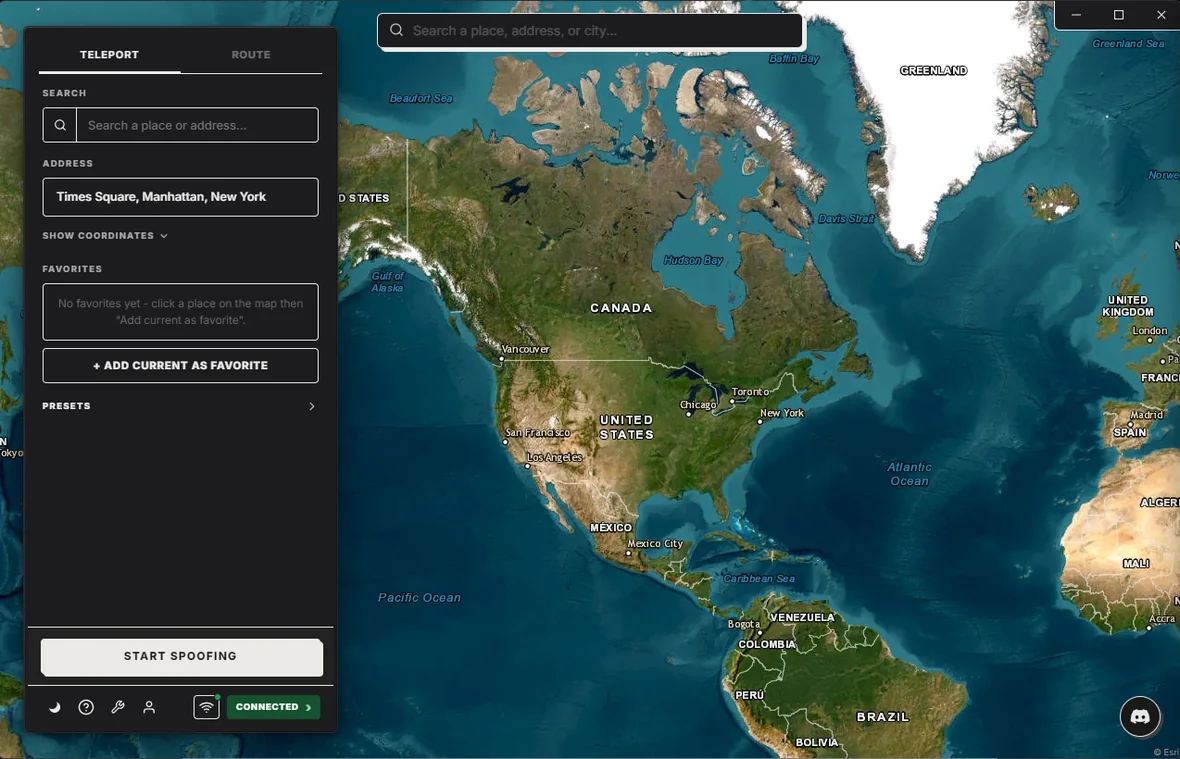
Apple doesn't allow apps like that. Every iPhone app you'll find on the App Store claiming to spoof your location is either a basic VPN (which won't fool Maps, Find My, or Snap Map) or a scam. There's no fake-GPS button on the App Store. That door is closed by design.
What is allowed: a computer talking to your phone over a cable, using a built-in developer feature Apple ships with every iPhone running iOS 17 or newer. The phone treats whatever the computer sends as real, and every app on the device sees the fake spot.
The way that actually works on iOS
You install PinDrift on a Mac or Windows PC. You plug your iPhone in once, turn on a developer toggle in iPhone Settings, and that's the setup. From that point, anytime you open PinDrift you can click a spot on a world map and your iPhone is suddenly there.
Maps reroutes from it. Find My shows you at the fake spot. Snap Map drops your Bitmoji there. Pokemon Go spawns local creatures for that spot. Weather, dating apps, location-based games, the lot.
Three-minute setup
- Download PinDrift for Windows or macOS from the home page. No account, no email.
- Plug your iPhone in with a data cable. Tap "Trust This Computer" when the phone asks.
- In PinDrift, click "Reveal Developer Mode". Then on your iPhone go to Settings → Privacy & Security → Developer Mode → toggle on. The phone reboots once. Done forever.
After that, click anywhere on the map and hit "Spoof This Location". You're there.
What apps see
The fake spot looks exactly like a real GPS reading to iOS. There's no "this is fake" flag attached. Apps that just ask the phone where it is, which is almost all of them, see what you set.
A small number of apps run extra fraud checks. Some banking apps, some rideshare driver apps. PinDrift's tiny realistic GPS wobble (called jitter) defeats most of the simple ones, but no spoofer beats every detection system. Don't use it where a wrong location could break the law or your job.
Pricing: $9/mo · $60/yr · $70 Lifetime · A True Free Trial · all future updates included, forever.
Frequently asked questions
What's the iOS equivalent of Fake GPS Free?
There isn't an app on the App Store, because iOS doesn't let apps override location for other apps. The same outcome (your phone reporting a fake spot to every app) is done with a computer-side tool like PinDrift. No jailbreak, and the desktop app needs no sideloading and no Apple ID.
Will my phone notice?
No. The feature we use is built by Apple, so iOS treats the fake spot as real. Maps reroutes from it, weather updates for it, geofences fire on it. The phone has no way of knowing the location came from a computer instead of the GPS chip.
Does PinDrift work on iPad?
No. PinDrift supports iPhone only. iPad is not supported in the current build, including Wi-Fi-only models. PinDrift also has a standalone Android app, which needs no computer at all.
Switch back to real GPS instantly?
Yes. Click Stop Spoofing in PinDrift, or just unplug. The phone returns to real GPS within a second or two. No reboot, no settings to undo.
Try PinDrift
A real free trial: no card, no account. $9 a month, $60 a year, or $70 once.
Download PinDrift $9/mo, $60/yr, or $70 once