How to freeze your location on Find My without them knowing
The trick everyone tries first, airplane mode, leaves a stale pin or a “No Location Found” message, which is the exact thing people notice. The clean way to go dark on Find My is to keep sharing on and change the location your iPhone reports, so it shows a live, believable place instead of freezing or vanishing. Here is exactly how.
Why the usual “freeze” tricks give you away
Search for how to freeze your location and you get the same handful of tricks. Every one of them leaves a tell:
- Airplane mode stops your phone reporting a fresh fix. Find My falls back to your last known pin and then, before long, to “No Location Found.” A stuck or missing pin is the first thing anyone watching notices.
- Turning off Location Services does the same thing, only faster. You drop to “Location Not Available.”
- Stop Sharing My Location takes you off their map: depending on the iOS version they see “Location Not Available” or you drop out of their list, and that absence is louder than any wrong pin.
- An old second-phone trick means carrying two devices and hoping nobody notices the one you left at home, which is fragile and obvious the moment plans change.
The pattern is the same every time: these tricks remove your location, and a removed location is conspicuous. The fix is to replace it with a believable one instead.
What Find My actually shows the other person
To hide convincingly, it helps to know what the people you share with can see:
- Your live pin on the map and the place name or address it sits on
- Whether your location is current or shows “No Location Found” / “Location Not Available”
- Notifications they may have set for when you arrive at or leave a place
- Whether you appear in their list at all (sharing on vs off)
A believable hide has to keep you present, current, and somewhere that fits your story. Freezing fails the “current” test. Stopping sharing fails the “present” test. Reporting a fresh, believable location passes all of them.
The clean method: keep sharing on, change the location
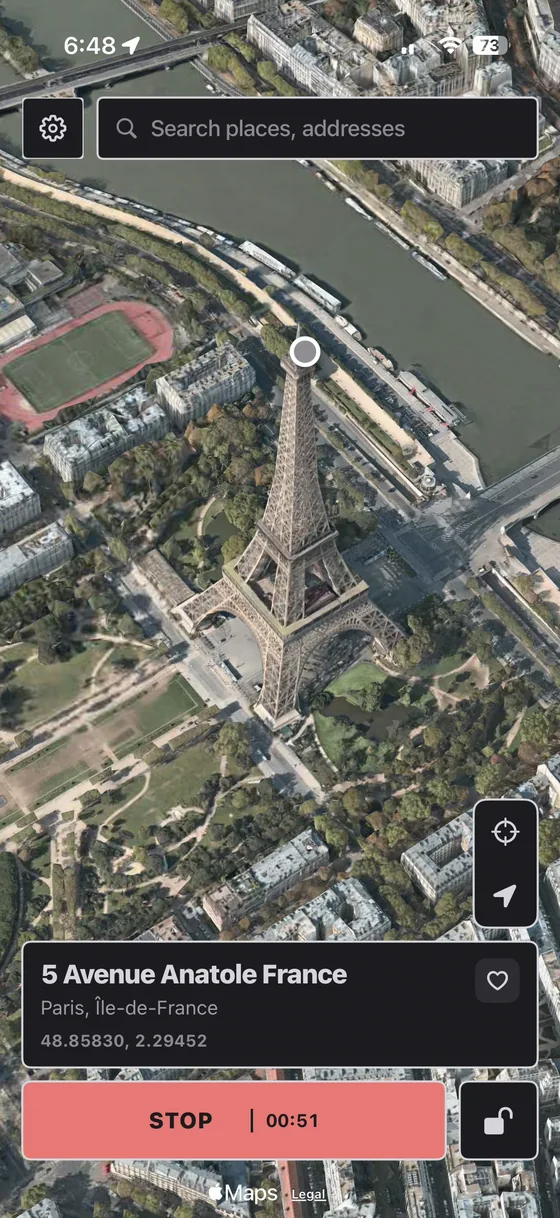
Instead of cutting your location off, you change the GPS location your iPhone reports to iOS. Find My reads that location like any other app, so it keeps showing a normal, current pin, just at the place you chose. This is what a location spoofer does, and PinDrift does it cleanly: it changes the location at the source, from your computer or from the PinDrift iPhone app, with no jailbreak and no change to iOS itself.
Because sharing never turns off and the phone keeps reporting a fresh fix, Find My never shows you as unavailable and never sends a sharing-changed alert. To the other person it looks like an ordinary day.
Step by step
- Install PinDrift on your PC or Mac. Windows 10/11 or macOS 13+. It can install the PinDrift iPhone app, with 30 free minutes a day, no card and no account.
- Plug your iPhone in once and pair. One USB pairing, then you can go fully wireless on your network.
- Leave Find My alone. Do not Stop Sharing Location and do not touch Location Services. Keep sharing fully on.
- Drop a pin on a believable spot. Home, work, the gym, a friend’s place, anywhere you could plausibly be.
- Set the location. Find My updates to that pin within seconds and keeps refreshing like normal, with a live timestamp.
- Add movement if you want. Draw a walking, cycling, or driving route so you drift between real places instead of sitting on one dot.
Make it believable (this is the part people get wrong)
Hiding without getting caught is less about the tool and more about the story. A few rules:
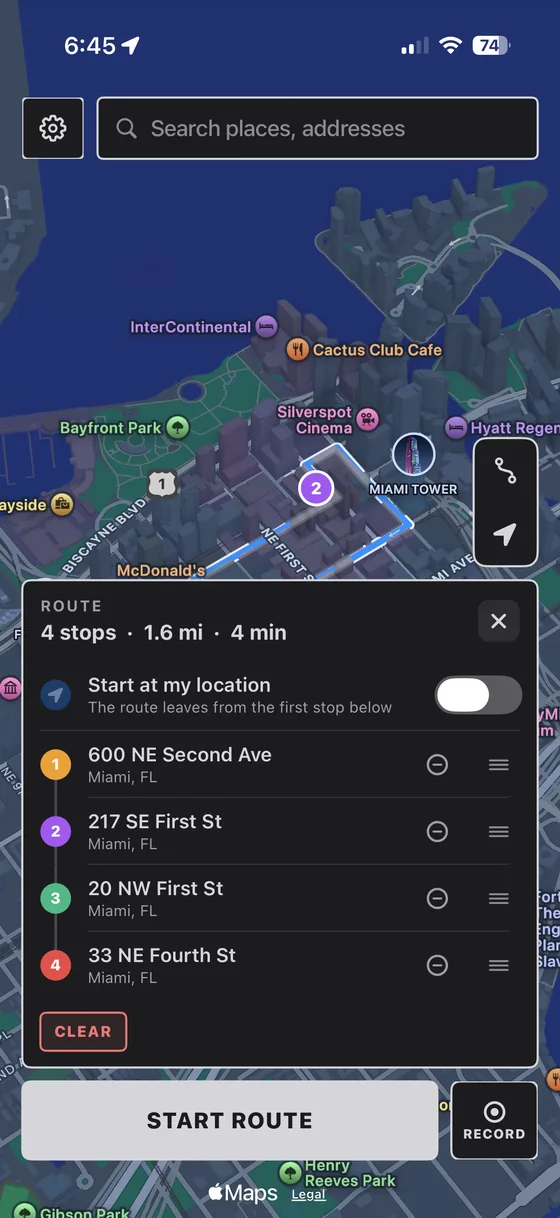
- Do not jump instantly across the map. Snapping from your couch to another state in one refresh looks wrong. Set the location before you “leave,” or use a route so the move is gradual.
- Do not sit on one pin for hours either. A real person drifts a little. A route, or shifting between two real places, keeps it natural.
- Match what you told people. If you said you are at the library, pin the library, not a random street two miles away.
- Keep the phone reporting. The whole advantage here is a live pin. Do not undo it by also toggling airplane mode.
- Mind arrival and departure alerts. If someone set a notification for when you leave home, set your believable pin before you actually leave so the alert never fires at the wrong time.
Does Find My notify them when your location changes?
No. Find My does not push a notification just because your pin moved, that is the normal behavior it shows all day. The only changes it surfaces are ones you trigger: Stop Sharing Location (you drop off their list) and any arrival or departure alerts they set up. Since this method never stops sharing, none of that fires. Your pin simply updates to the place you picked.
Will Find My detect it?
Find My does not run on the iPhone in a way that can see “under” the GPS. It receives the location iOS hands it, and PinDrift changes that location at the iOS level. Apple publishes no spoof indicator in Find My and we know of none, but that is where things stand, not a promise. What actually gets people caught is the realism mistakes above, not the app catching a fake fix. And because your iPhone is never jailbroken and iOS itself is never modified, your iPhone stays stock and keeps getting updates.
PinDrift is a location-privacy tool for your own iPhone and your own accounts. Use it that way. See our acceptable use and disclaimer for the details.
Frequently asked questions
Does Find My notify the other person when you freeze or change your location?
No. Find My does not send a notification when your reported location changes. It only shows a visible change if you Stop Sharing Location, which makes you read as “Location Not Available” to that person. If you keep sharing on and change the location your iPhone reports, they just see a normal, updating pin.
Why does the airplane-mode freeze trick give me away?
Airplane mode and turning off location stop your phone from reporting a fresh fix, so Find My falls back to a stale pin or shows “No Location Found.” A frozen or missing location is exactly the tell people look for. Reporting a fresh, believable location avoids it.
Can I make Find My show me at a specific place instead of just freezing?
Yes. PinDrift sets the exact location your iPhone reports, so you can pin a believable place like home, work, or the gym and Find My shows you there, live and updating, instead of stuck or unavailable.
Does this need a jailbreak?
No. PinDrift works through Apple’s Developer Mode on a stock iPhone, either from your Windows PC or Mac, which installs nothing on the phone, or from the PinDrift iPhone app, an ordinary app you can delete. Nothing is jailbroken, so it stays fully stock and keeps getting updates.
Will the person see a last-updated time that looks frozen?
Not with this method. Because location sharing stays on and your iPhone keeps reporting a fresh fix, the pin keeps refreshing normally. A static spot still updates, unlike airplane mode which leaves it stale.
Try PinDrift
30 free minutes a day on the PinDrift iPhone app, no card, no account. $9 a month, $60 a year, or $70 once.
Download PinDrift $9/mo, $60/yr, or $70 once