Life360 Ghost Mode, explained
Ghost Mode is a Snapchat feature. Life360 does not have one, has never had one, and the closest thing it does offer announces itself to your circle.
Short answer
Life360 has no Ghost Mode. The term comes from Snapchat, where it is a real setting that hides you on Snap Map. People carry the phrase across because they want the same thing from Life360, but no equivalent exists. What Life360 actually has is Bubbles, which blurs your exact position into a radius, and Pause, which stops updates. Both are visible to the circle by design. Nothing in the app makes you quietly invisible.
Where the term comes from
Snapchat has a genuine setting called Ghost Mode. Turn it on and your Bitmoji comes off Snap Map, and nobody can see where you are. It is a real, named, supported feature, and it works.
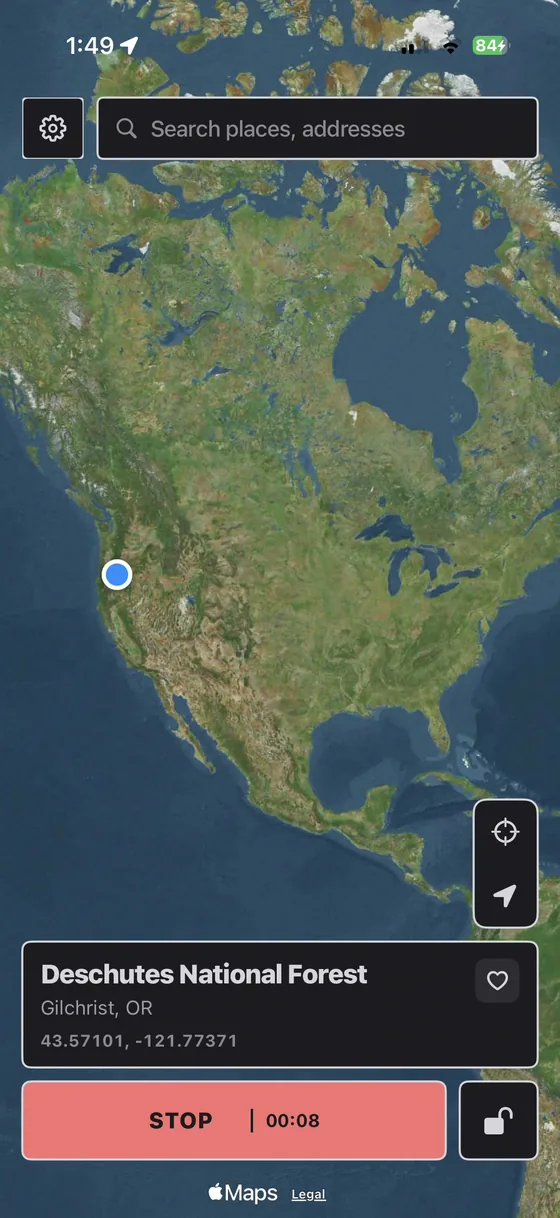
Life360 has nothing equivalent. Search results promising to show you "how to enable Life360 Ghost Mode" are describing something else under a borrowed name, usually pausing, revoking location permissions, or changing the GPS the phone reports. Those are all real approaches with real trade-offs, but none of them is a switch inside Life360, and it is worth being clear about that before following a tutorial that implies otherwise.
What Life360 actually offers: Bubbles
Bubbles is the official privacy feature, and it is the closest thing to what people are looking for. You tap your own avatar, choose Create a Bubble, pick a radius and a duration, and for that window the circle sees an area rather than a point.
The catch is in how it is presented. A bubble is drawn on the map as a bubble. Your circle does not see a vague position and assume the GPS is being imprecise; they see a clearly marked circle and know you turned it on deliberately. For hiding a surprise party that is fine. For not being asked about it, it is the opposite of discreet.
And Pause
Pausing stops your phone sending updates. No push notification goes out, which is why it gets recommended so often, but the app writes "Location Sharing Paused" under your name and leaves your avatar frozen at the last precise spot it had. The gap is the giveaway. The full breakdown is here.
Snapchat Ghost Mode vs. what Life360 has
| Feature | App | Effect | Obvious to others? |
|---|---|---|---|
| Ghost Mode | Snapchat | Removes you from Snap Map entirely | Yes, you vanish from the map |
| Bubbles | Life360 | Blurs your position into a chosen radius | Yes, drawn as a labelled bubble |
| Pause | Life360 | Stops updates entirely | Yes, paused label and frozen pin |
| Simulated location | Neither, it is at the OS level | Reports different coordinates | Not from a label: the pin looks normal. How it moves is what gets judged |
What people are usually actually asking
Almost nobody searching this wants to disappear from the map. Disappearing prompts the exact conversation they are trying to avoid. What they want is for the map to look completely ordinary while not being where it says.
That is a different problem, and it is not solved inside Life360, because Life360 has no interest in solving it. It is solved a layer down, at the operating system, by changing the location iOS hands to every app that asks. Life360 then reports what it is told, on schedule, with a fresh timestamp and no label.
How that works on iPhone
Apple does not allow App Store apps to override Core Location. The coordinates come through Developer Mode, which Apple has shipped since iOS 16 for developers testing location-aware apps: either from a computer paired with the phone, or from the PinDrift iPhone app, which that computer installs once with your own Apple ID and which then works with no computer at all. The phone stays stock, and switching Developer Mode back off undoes everything.
- Install PinDrift on Windows or macOS.
- Turn on Developer Mode: Settings, Privacy & Security, Developer Mode. One restart.
- Pair over USB once, tap Trust, then go wireless on your network.
- Drop a pin, or draw a route so the position moves at a believable speed rather than sitting still for hours.
See the Life360 page for how PinDrift handles this specific app, or the full stealth guide for what a convincing pattern looks like over a day.
Location privacy between adults is a reasonable thing to want. Evading a custody arrangement, a court order, or a bail condition is not, and our Acceptable Use policy says so plainly. If you are a minor in a circle your parents set up, this is a conversation to have with them.
Frequently asked questions
Does Life360 have Ghost Mode?
No. Ghost Mode is a Snapchat feature that hides you on Snap Map. Life360 has never had an equivalent setting. Guides claiming to show you how to turn on Life360 Ghost Mode are describing pausing, revoking permissions, or changing the reported GPS, none of which is a switch inside the app.
What is the closest thing to Ghost Mode on Life360?
Bubbles. You pick a radius and a duration, and the circle sees an area instead of an exact point. It is a genuine privacy feature, but it is drawn on the map as a visible bubble, so your circle can tell you switched it on deliberately.
How do I turn on Bubbles in Life360?
Tap your own avatar on the map, choose Create a Bubble, use the slider to set how large an area to blur your position into, set how long it should last, and confirm. It expires automatically at the end of the window.
Is pausing my location the same as Ghost Mode?
No. Pausing stops updates rather than hiding you. Your avatar stays frozen at your last precise location with a "Location Sharing Paused" label under your name, so it is arguably more conspicuous than staying visible.
Can I hide from Life360 without anyone noticing at all?
Not by using anything inside the app. Every built-in option leaves a visible marker: a bubble, a paused label, a permissions warning, or a stale timestamp. The only approach that leaves the map looking untouched is to keep reporting a location and change what those coordinates are, which happens at the operating system level rather than in Life360.
Does Life360 notify the circle if I use Bubbles?
No push notification is sent, but the bubble itself is drawn on the map for the duration you set, so anyone who opens the app during that window can see it. It is designed to be visible rather than secret.
Try PinDrift
30 free minutes a day on the PinDrift iPhone app, no card, no account. $9 a month, $60 a year, or $70 once.
Download PinDrift $9/mo, $60/yr, or $70 onceKeep reading
- Hide your Life360 location without them knowingThe full walkthrough, including what a believable location looks like.
- Life360 location spooferHow PinDrift handles Life360 specifically.
- Pause Life360 without them knowingWhat the circle actually sees when you hit pause.
- Find My location spooferThe same problem on Apple's own tracker.
- iPhone location changerWhat a VPN can and cannot do.