Change the location Life360 receives from your iPhone
PinDrift is a Life360 location spoofer for iPhone that changes the GPS location reported by supported iOS devices. It can hold a chosen location or simulate movement while Life360 remains enabled, without jailbreaking the iPhone.
Short answer
Life360 asks iOS where the phone is and displays the answer, so changing the coordinates iOS reports changes what your circle sees. Unlike pausing or Bubbles, this leaves no visible marker: no "Location Sharing Paused" label, no frozen avatar, no stale timestamp. The pin keeps moving and updating normally. Setup needs a Windows or macOS computer once, and Developer Mode on iOS 17 or later. After that you can keep driving it from the computer, or install the PinDrift iPhone app, included with every paid plan, and let the phone hold and move the location with the computer off.
A Life360 location spoofer changes the GPS location reported by a supported iPhone while Life360 remains enabled. It may affect the location pin and route information Life360 receives, but results can vary because driving, crash and safety features may use additional permissions and motion signals.
What Life360 normally displays
Life360 shows the members of a circle a set of signals drawn from each phone. On a typical iPhone card your circle can see a live location pin and street-level address, a last-updated timestamp, battery level and charging status, and, on plans that include them, driving and speed summaries plus arrival and departure alerts at saved Places. Paid circles also retain location history and breadcrumbs. Every one of these signals is built from the location and motion data the iPhone reports to iOS, which Life360 reads like any other app.
What changing the iPhone's GPS can affect
A Life360 spoofer for iPhone works by changing the GPS location your iPhone reports to iOS. Because Life360 reads that same reported location, changing it at the source can change the pin and route information Life360 receives. PinDrift runs on your Windows PC or Mac and sets the location over a standard developer connection, so the phone reports the place you choose. When you change your Life360 location this way, sharing stays enabled and the pin keeps updating rather than showing a paused or off state. This is the basic mechanism behind Life360 GPS spoofing on iPhone.
What it cannot guarantee
Changing the reported GPS location is one input, not a master switch. Life360's driving, crash and safety features can draw on additional permissions and motion signals, so results can vary by app version, iOS version, device and network conditions. PinDrift changes the supported simulated GPS output; it does not control how any given Life360 feature interprets that output, and it makes no claim to be undetectable. Treat it as a location-privacy tool with honest limits, not a way to defeat safety systems.
Location pin behavior
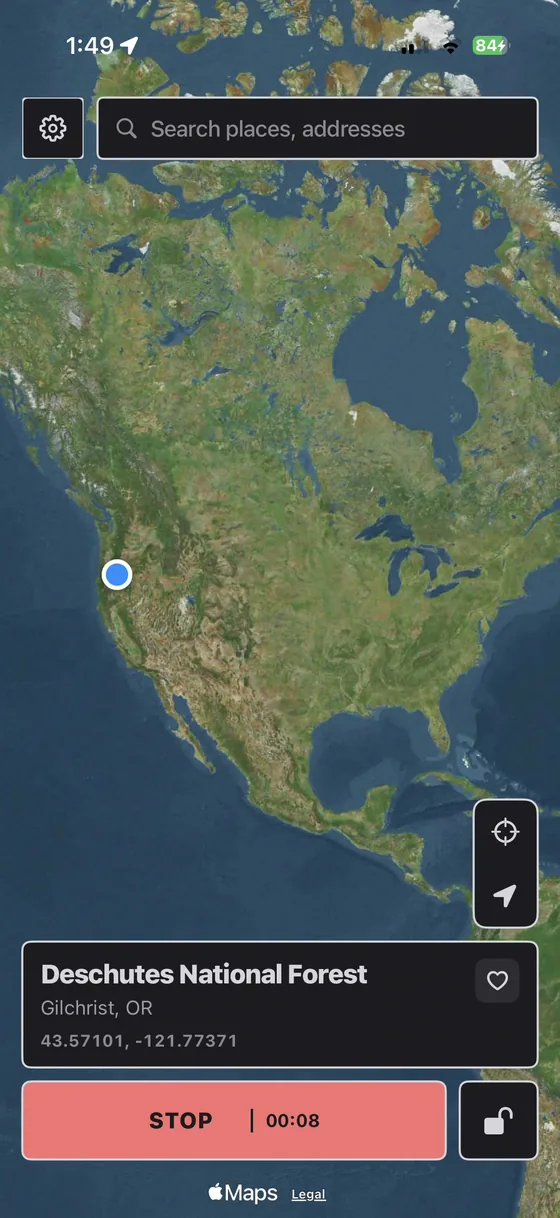
For a static location, you drop a pin on the map and apply it. Life360 then reads that spot as your current position and keeps refreshing it with a live timestamp. A location that jumps a long distance between two refreshes can look unrealistic, so setting a believable pin before you move, or using a route instead of a single point, keeps the pin behavior natural. Nothing here forces a particular result inside Life360; it simply reflects whatever location the iPhone is reporting.
Route simulation
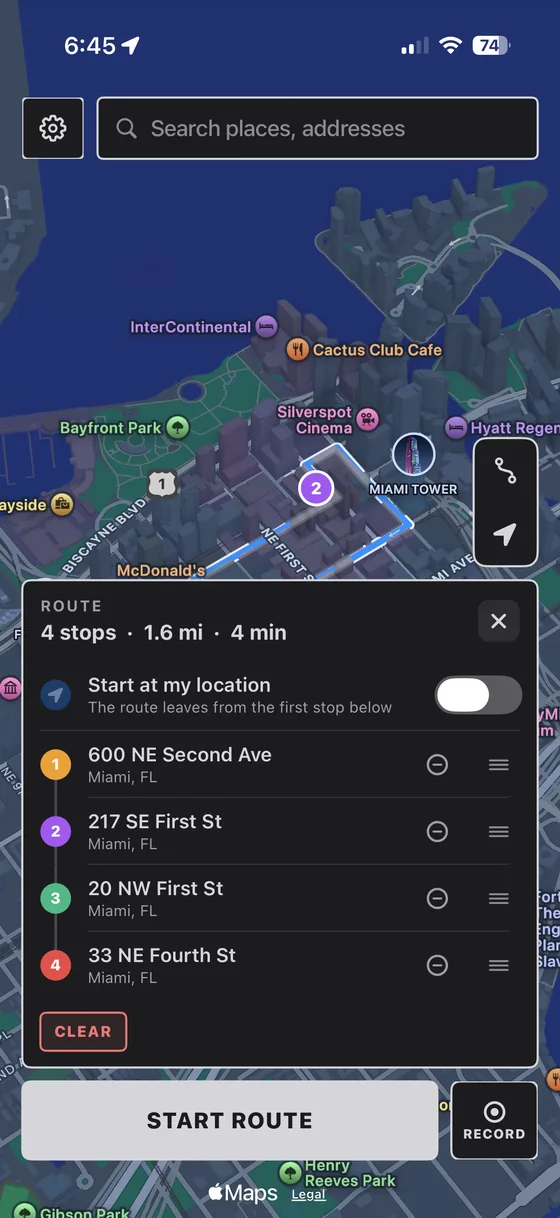
Instead of a fixed point, PinDrift can simulate movement along a path. Draw a route, pick walking, biking or driving, and the iPhone reports the location moving along it. You can import a GPX file, control speed, add GPS jitter and snap to roads, and record and replay routes. On Life360 a simulated drive appears as movement over time rather than a single frozen dot, though how driving-specific metrics read can still depend on the other signals Life360 uses.
Place alerts
Life360 fires arrival and departure notifications when your pin crosses the geofence of a saved Place. Because those alerts key off the reported location, setting your pin before you cross a boundary avoids triggering an alert at an unexpected moment. This is behavior to be aware of, not something PinDrift suppresses inside Life360: the app still sends whatever alerts its own logic decides to send based on the pin it sees.
Location history
Paid Life360 circles keep location history and breadcrumbs. Because a spoofed pin updates continuously, the timeline fills in with the places you set rather than leaving the gap that pausing or turning sharing off would create. History still records whatever locations were reported, so what it shows depends entirely on what you set. If you want to review or clear what Life360 has stored, use Life360's own controls in its apps and at life360.com.
Driving and speed limitations
Life360's Driving features read speed derived from location over time and can also use the phone's motion sensors. A static pin generally reads as not driving. A route run at a driving speed can appear as a trip. Because these features may combine location with other signals, GPS spoofing does not give you precise control over every driving metric, and driving reports can differ from what you intend. This is an area where results genuinely vary, so it is worth confirming behavior on your own device rather than assuming a specific outcome.
Anti-Speed™
Anti-Speed is a PinDrift safeguard that limits how fast a simulated route is allowed to move, so a spoofed drive stays within a realistic speed range instead of producing impossible velocities. Life360 Anti-Speed is about keeping simulated movement plausible: it is a movement governor for the route you build, not a way to alter Life360's crash detection or other safety features. Changing the reported GPS location does not control those safety features, and Anti-Speed does not change them either.
Supported iPhone and iOS configurations
PinDrift runs on Windows 10 (22H2) or Windows 11 and on macOS 13 (Ventura) or newer. It supports iPhone on iOS 17 and later; iPad is not supported. Pairing is over USB once, after which you can work wirelessly on the same Wi-Fi network, or remotely over Tailscale, which is a separate third-party product. No jailbreak is required, and iOS itself is never modified. Driving the spoof from the desktop installs nothing on the iPhone; the PinDrift iPhone app, included with every paid plan, is an ordinary app you can delete. The Windows installer is not code-signed, so verify your download against the published SHA-256 checksum. PinDrift for Android is a standalone app and needs no computer.
Privacy and consent
PinDrift is a location-privacy tool for a device and accounts you own. Use it on your own iPhone, and respect the agreements you have with the people in your circle as well as any laws that apply to you. Life360 provides its own sharing and privacy controls, including pausing or turning off sharing, in its apps and at life360.com; those are the built-in ways to manage what you share. Do not use PinDrift to deceive people who rely on your location for safety.
PinDrift changes the location on your own iPhone, on your own accounts. See our acceptable use and disclaimer for the details, and read our guide on how to hide location on Life360 without them knowing for the full context on what your circle can and cannot see.
Free trial
PinDrift includes a true free trial with no card and no account, so you can confirm it changes the location on your own iPhone before paying. If you keep it, pricing is $9 a month, $60 a year, or $70 one-time for lifetime, and all future updates are included. One license covers one active host computer at a time. The iPhone app is included with every paid plan, so once it is installed the phone holds the location itself and the computer does not have to stay on.
Frequently asked questions
Can you spoof your location on Life360 on iPhone?
Within limits, yes. A Life360 location spoofer like PinDrift changes the GPS location your iPhone reports to iOS, and Life360 reads that reported location. You install it from a Windows PC or Mac, and once the PinDrift app is on the iPhone the phone holds the location on its own. It changes the simulated GPS output; it does not control every Life360 feature, so results can vary by app version and iOS version.
Can you change your Life360 location without turning sharing off?
That is the idea behind this method. You leave Life360 sharing enabled and change the location the iPhone reports underneath it, so the pin keeps updating with a live timestamp instead of showing a paused or off state. Our informational guide walks through what stays visible to your circle and what does not.
Does Life360 show "Location Sharing Paused"?
Life360 shows a paused or off status only when you actually pause sharing, turn it off, or leave the circle. Changing the reported GPS location while sharing stays on does not trigger that flag, because sharing is never switched off. If you pause or disable sharing yourself, the flag appears as usual.
Can Life360 detect a GPS spoofer?
PinDrift changes the location at the iOS level over a wired pairing, and Life360 reads whatever location iOS provides, so there is no in-app spoof-detected warning tied to this method. That is not a promise of being undetectable: unrealistic movement, such as an instant jump across the map or a pin frozen for hours, is what tends to look wrong, and Life360 can change its apps at any time.
Does GPS spoofing affect Life360 driving reports?
It can. Driving reports are built from speed derived from location over time, and can use motion sensors too. A static pin usually reads as not driving, and a route run at a driving speed can appear as a trip. Because Life360 may combine several signals, spoofing does not give exact control over every driving metric.
Does Anti-Speed change crash detection?
No. Anti-Speed is a PinDrift feature that keeps simulated route movement within a realistic speed range. Changing GPS does not control crash detection, which is a Life360 safety feature that can use additional sensors and permissions. Anti-Speed only governs how your simulated movement behaves.
Do you need to jailbreak your iPhone?
No. PinDrift changes the location over a standard USB developer pairing from your computer. Driving the spoof from your computer installs nothing on the iPhone, and it is not jailbroken, so it stays stock and keeps receiving updates. It supports iOS 17 and later.
Does PinDrift work when the computer is off?
Yes, once the PinDrift app is on your iPhone. You install it from a Windows PC or Mac and pair once over USB, and after that the phone can hold and move its own location with the computer off. The desktop app is still how you install it, and it is the more comfortable place to draw a long route.
Try PinDrift
A real free trial: no card, no account. $9 a month, $60 a year, or $70 once.
Download PinDrift $9/mo, $60/yr, or $70 onceKeep reading
- Hide your location on Life360 without them knowingThe informational guide: what your circle sees, and what it does not.
- Anti-SpeedHow the simulated-movement speed governor keeps routes realistic.
- Location privacyThe privacy thinking behind changing your own reported location.
- CompatibilitySupported Windows, macOS and iOS versions in one place.
- PricingMonthly $9, Yearly $60, Lifetime $70, and a true free trial.