Change the location shown in Find My
Find My reads the GPS location your iPhone reports. Change that location and Find My shows the new one, live and updating, without stopping sharing.
Short answer
Find My reads the same Core Location data every other app does, so a simulated location shows up in Find My as the real one, for you and for anyone sharing your location. It does not show as "No Location Found" or as location sharing being off, which are the two states that get noticed. Developer Mode on iOS 17 or later is required. Setup needs a Windows or macOS computer once. After that you can either keep using desktop mode, where a powered host drives the phone, or install the PinDrift iPhone app that comes with every paid plan and run with no computer involved at all.
Short answer
A Find My location spoofer changes the GPS coordinates your iPhone reports to iOS, so Find My shows that spot instead of where you actually are. PinDrift runs on your Windows PC or Mac and sets the location over a USB pairing, with no jailbreak and no change to iOS itself. Sharing stays on, the pin stays live, and no spoof-detected alert fires. It is not undetectable. Desktop mode keeps a powered computer in the loop; the PinDrift iPhone app takes the computer out of it entirely.
Stopping sharing and changing the reported GPS are not the same thing
There are two very different ways to stop someone seeing where you are, and they look nothing alike on the other person's screen.
Stopping sharing uses Apple's own control: Stop Sharing Location, or turning off Location Services. It removes you from the other person's list or shows you as "Location Not Available." That absence is conspicuous. It is the exact thing a worried parent or partner notices first.
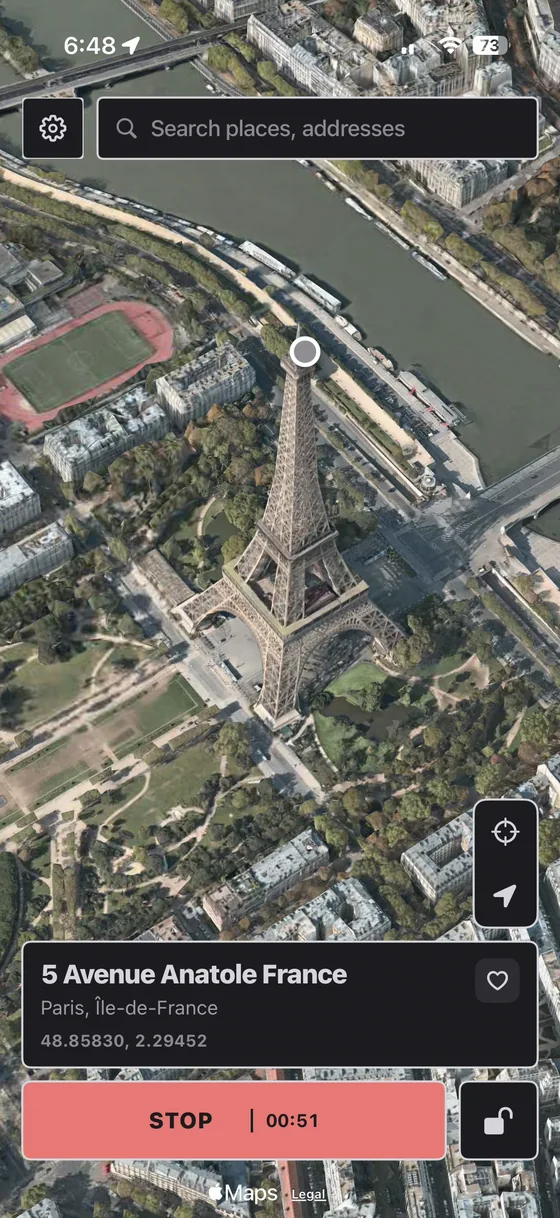
Changing the reported GPS leaves sharing switched on and swaps the coordinates your iPhone hands to iOS. Find My reads those coordinates like any other app and keeps showing a normal, current pin, just at the place you picked. This is what a Find My location spoofer does, and it is how PinDrift lets you hide location on Find My without vanishing from the map. If you want the pin to sit still without going stale, that steady-state approach is covered in our guide on how to freeze your Find My location without them knowing.
How the location updates
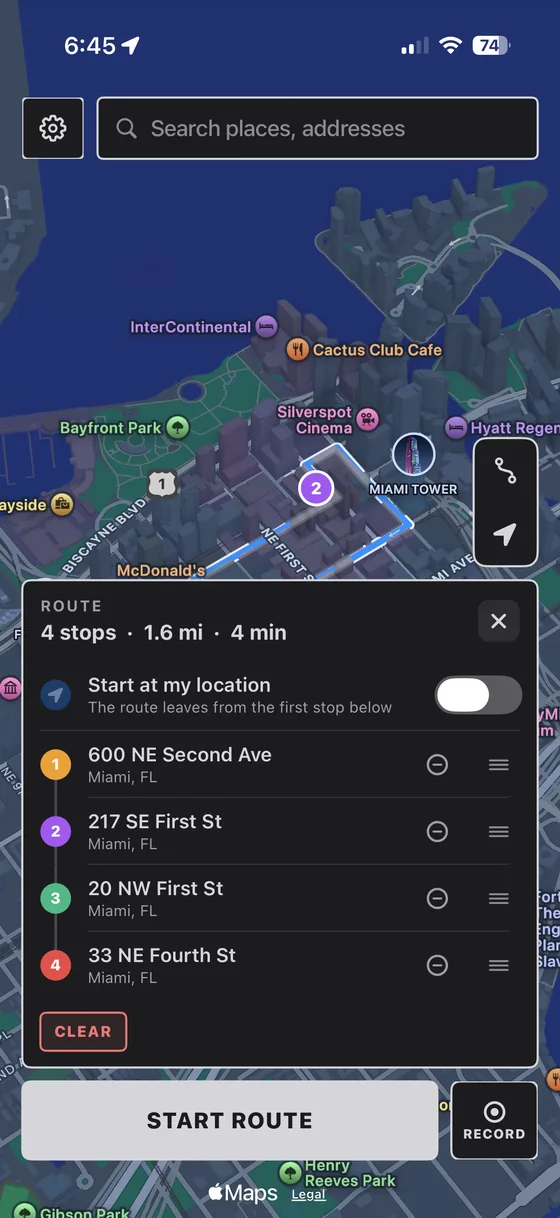
Find My shares your position in near real time whenever the iPhone is reporting a fresh fix. When you spoof Find My location with a single pin, the dot sits on that spot and the "last updated" timestamp keeps refreshing, so it never looks frozen. When you draw a route, the dot moves along it at a realistic speed, so people watching see you travel.
The one hard rule about desktop mode, and it applies to desktop mode only: there, the changed location holds for exactly as long as the iPhone can reach the host, over a cable or over your network. On a full disconnect, iOS clears the spoofed fix within a couple of seconds and the pin reverts to your real location. Mobile mode does not work this way, because there is no host for it to lose. For a location that holds around the clock, PinDrift's always-on mode keeps the pin live from a host computer you leave powered on. In desktop mode, "wireless" and "always-on" both still mean a running host. The way to run with the computer switched off is the PinDrift iPhone app, included with every paid plan, which takes the computer out of the loop entirely once it is installed.
Arrival and departure notifications
People you share with can set alerts for when you arrive at or leave a specific place, like home or school. A pin that simply moves does not send any notification. But those arrival and departure alerts do fire on the coordinates Find My receives, so they react to your spoofed location, not your real one.
The practical takeaway when you change Find My location: set your believable pin before you actually leave a place someone is watching, so a departure alert does not fire at a time that contradicts your story. This is realism, not a feature of the tool, and it is the part people most often get wrong.
Limitations (the honest part)
A Find My location spoofer is not magic, and pretending otherwise would be dishonest. Here is what it will not do:
- It is not undetectable. There is no app-side spoof warning in Find My, but a fake location can still be caught the human way, through instant jumps, stale pins, or a place that does not fit your story.
- In desktop mode it does not survive a full disconnect. Unplug with no host holding the session and the spoof drops in seconds, so always-on in desktop mode means leaving a computer powered and running. The PinDrift iPhone app on a paid plan removes that limit entirely.
- It does not change region-locked systems. Apple Pay, your Apple ID country, and the App Store storefront run separate region checks that GPS does not touch.
- It does not override emergency location. An emergency call routes your real coordinates to dispatchers through a hardware path, independent of the spoof. That is by design and we would not want it any other way.
- Not every app trusts GPS alone. A few apps run extra fraud checks. See our compatibility notes for what tends to work and what does not.
- The Windows installer is not code-signed. Verify your download against the published SHA-256 checksum before running it.
Precision Finding is a different system
It is worth being precise about Find My GPS spoofing versus Precision Finding, because they get confused. Precision Finding is the close-range arrow that guides you the last few meters to an iPhone or an AirTag. It uses Ultra Wideband radio between two nearby devices, not GPS.
Because PinDrift changes only the GPS location your iPhone reports, it does not affect Precision Finding. If someone is standing near your device and uses the Precision Finding arrow, that arrow reads the Ultra Wideband signal directly and is unchanged by any spoof. Spoofing the map pin and defeating a close-range Ultra Wideband search are two separate things, and PinDrift does the first, not the second.
Supported configurations
PinDrift is desktop software that drives a supported iPhone. The supported setup:
- Host: Windows 10 (22H2) or Windows 11, or macOS 13 Ventura and newer (Apple Silicon or Intel).
- iPhone: iOS 17 or newer. Developer Mode, the switch this relies on, was introduced by Apple back in iOS 16, so it is present on every supported version. iPad is not supported.
- Connection: a one-time USB pairing, then wireless on the same Wi-Fi network, or remotely over Tailscale (a separate third-party product). Either way, in desktop mode a powered host has to stay running. With the PinDrift iPhone app installed, nothing does.
- Scale: one active host computer per license at a time, either Windows or Mac.
If you drive spoofed routes, PinDrift's Anti-Speed™ feature keeps movement inside realistic limits so the trip reads as plausible rather than teleporting. For the wider picture of what Find My exposes and how to think about it, see location privacy.
Privacy and consent
PinDrift is a location-privacy tool for your own iPhone and your own accounts. Use it that way. Do not use it to deceive people who depend on your location for their safety, to get around a court order, or to break an app's terms of service.
Changing your own reported location is your call. Placing or tracking a device that belongs to someone else, without their knowledge, is not what this is for. See our acceptable use policy and disclaimer for the details, and our notes on location privacy for context.
Frequently asked questions
Does Find My notify people when I change my location?
A pin that moves does not trigger a notification on its own. The changes people are told about are ones you set off: Stop Sharing Location removes you from their list, and any arrival or departure alerts they configured fire when your pin enters or leaves a place. As long as you keep sharing on and let the phone report a fresh location, they see a normal, updating pin.
Is a Find My location spoofer undetectable?
No, and we will not claim that. Find My reads whatever location iOS reports, so there is no app-side spoof-detected warning to trip. What gives people away is realism: instant jumps across the map, a stale pin, or a place that does not match your story. No spoofer can promise zero detection against a determined fraud or safety team.
Does the spoof stay after I unplug the iPhone?
It depends which mode you are in. In desktop mode, no: the location holds only while the iPhone can reach the host, by cable or over your network, and it clears within a couple of seconds of a full disconnect. That is an Apple design choice. In mobile mode, yes: every paid plan includes the PinDrift iPhone app, and once the desktop app has installed it the phone holds and moves the location on its own with the computer unplugged and switched off.
Does PinDrift affect Precision Finding or AirTags?
No. Precision Finding uses Ultra Wideband radio between two nearby devices, not GPS. PinDrift changes the GPS location your iPhone reports, so it does not change a Precision Finding arrow or how an AirTag is located up close. Those are a separate system.
Do I need to jailbreak the iPhone?
No. PinDrift runs on your Windows PC or Mac and sets the location over a normal USB pairing using Developer Mode, which Apple introduced in iOS 16. PinDrift supports iOS 17 and newer. Driving the spoof from your computer installs nothing on the iPhone, and it is never jailbroken, so it stays fully stock and keeps getting updates.
Which platforms does it run on and what does it cost?
PinDrift runs on Windows 10 (22H2) or Windows 11 and macOS 13 Ventura or newer. There is a true free trial with no card and no account. If you keep it, it is 9 US dollars a month, 60 US dollars a year, or 70 US dollars once for lifetime, with all future updates included and the PinDrift iPhone app on every paid plan. There is an Android app too, included on every paid plan.
Is this legal to use?
Using PinDrift on an iPhone you own, with your own accounts, for personal privacy is generally fine in the US, but this is not legal advice. Do not use it to deceive people who rely on your location for safety, to break an app's terms, or to evade a legal order. See our Acceptable Use policy.
Try PinDrift
A real free trial: no card, no account. $9 a month, $60 a year, or $70 once.
Download PinDrift $9/mo, $60/yr, or $70 onceKeep reading
- Freeze your Find My locationHold a believable pin with no "No Location Found" tell.
- Snapchat Map location spooferThe same approach against Snap Map.
- Anti-SpeedKeep spoofed routes inside realistic limits.
- Location privacyWhat Find My exposes and how to think about it.
- CompatibilitySupported iOS, hosts, and app notes.