How to stop apps tracking your location on iPhone
Six settings, ordered by how much they buy you. The first two take about a minute and do most of the work.
iOS has more location controls than most people ever open, and they are not equally useful. This is them in the order actually worth doing.
The two-minute version: Settings, Privacy and Security, Location Services, then move anything that does not need continuous access down to While Using or Never, and switch Precise Location off for apps that only need to know roughly which city you are in. That is most of the available benefit. The rest is either smaller, or carries a cost worth understanding first.
It is worth pinning down what "tracking" covers, because the word does a lot of work. There is an app reading you while it is open, an app reading you in the background for hours, iOS keeping its own record on the device, and a company holding what it already took. The settings below reach the first three, and none of them is retroactive.
1. Per-app access
Settings, Privacy and Security, Location Services. You get a list of every app that has asked, with what you granted.
The four options mean: Never, Ask Next Time, While Using, and Always. The realistic rule is that almost nothing needs Always. Navigation while you drive, and a genuine tracker you deliberately installed. Everything else works on While Using.
Two things the screen does not explain. Ask Next Time is a deferral rather than a setting, so the app asks again, and you make the same decision until you get bored and grant it. And While Using is wider than it sounds: an app can keep reading after you switch away, because iOS counts a background task that began while the app was open as part of using it. The arrow in the status bar is the honest indicator, not the row in Settings.
Read the list for what is on it, too. Apps you have not opened in a year still hold whatever you granted on install day, because permissions do not lapse from disuse. If the prompts themselves are what trip you up, they are explained here.
Worth knowing: the master switch at the top of that screen is the one to leave alone. Turning Location Services off entirely takes Find My down with it, and the day your phone goes missing is the day you find that out.
2. Precise Location
Inside each app’s entry is a Precise Location toggle. Off, the app gets an area several kilometres across instead of a point.
This is the highest-value setting on the page and the least used. Weather does not need your street. A store locator does not need your street. A social app almost certainly does not need your street.
The cost is real but narrow. Off for Maps, and turn-by-turn navigation stops making sense. Off for a ride-hailing app, and you type a pickup address instead of tapping a pin. Off for the other thirty apps on the list, and most people never notice.
The coarse area does not follow you minute by minute either, so an app polling repeatedly cannot assemble a precise position out of a run of vague ones. Apple does not publish the refresh interval, so treat that as the shape of it rather than a guarantee.
3. Audit what has Always
iOS periodically shows a map of where an app has been reading you and asks whether to continue. That prompt is worth actually reading. It is the only time the phone shows you the accumulated shape of what an app has collected rather than a single permission decision.
Read the map before you tap anything. It is every reading that app took while you were not looking, and a delivery app you used twice in spring, with a scatter of dots across your neighbourhood, is the clearest argument for Never you will get.
The prompt only fires for apps holding Always, so do the audit from the other end too. Scan for the rows you would not have predicted: a game, a shopping app, a keyboard. Anything on Always that cannot justify the background in one sentence does not need it.
4. System Services
At the bottom of the Location Services screen. This is iOS itself, and most of it is genuinely useful: emergency calls, time zone, Find My.
The entry people are surprised by is Significant Locations, which keeps a history of places you frequent. It is encrypted and on-device, and it is still a list of where you have been, and it can be turned off and cleared.
It deserves a second sentence, because people read "encrypted and on-device" and stop there. It is both of those. It is also the list your phone consults when it offers the drive time home before you asked, which is the tell that something is keeping score. Clearing it resets that convenience too.
Elsewhere in that list, Location-Based Ads and the suggestion rows do what their names say and cost nothing to switch off. Emergency Calls and SOS is the one to leave on.
5. Separate the sharing from the tracking
Find My sharing and Location Services are different things. Turning Location Services off does not stop you sharing with a person; stopping sharing does not stop apps collecting. Settings, your name, Find My, Share My Location controls the human side.
They also fail in different directions, which matters more than the distinction itself. With Location Services off, the people you share with get no notice, they get a stale last position or nothing, which reads as a flat battery. Stopping sharing in Find My is explicit and their app says so. Same result on the map, very different message.
Sharing lives in two places: the Find My app stops one person, the Settings toggle stops everybody at once. Use the app if you only mean to drop one person, because the master switch is loud.
6. The thing settings cannot fix
Every control above is visible to somebody. Stop sharing with a person and they see it stopped. Deny an app and it often nags, degrades, or refuses to work.
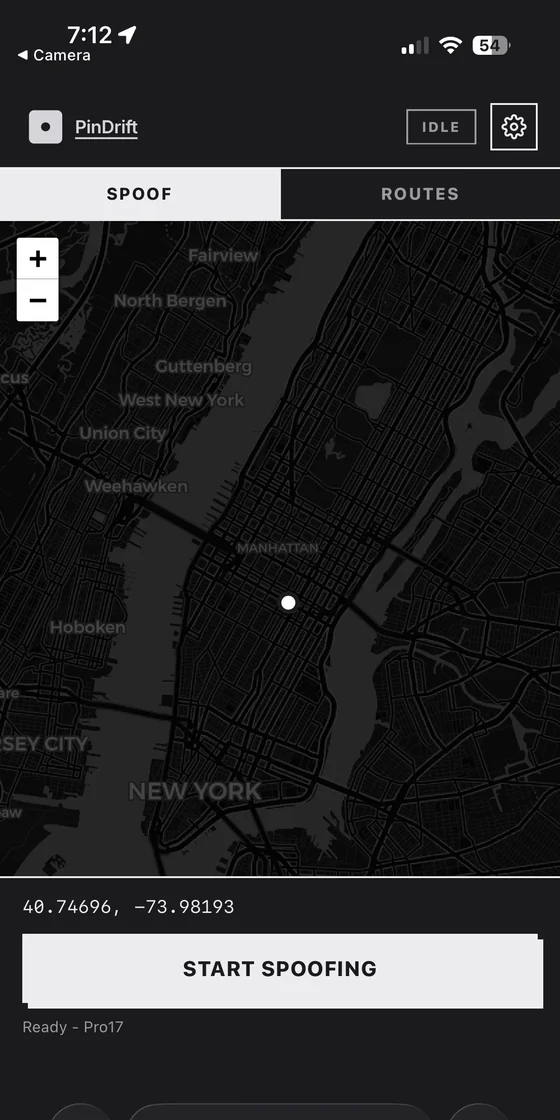
That visibility is the actual reason simulated locations exist. Not because people cannot find the off switch, but because the off switch announces itself, and a plausible location does not.
What none of this touches
Location Services governs the location APIs. It does not govern every route by which software works out roughly where you are.
- Your IP address. Any site or app with a connection maps it to a city, with no permission prompt involved. A VPN moves the IP but not the GPS.
- Photos you send. Images carry coordinates in their metadata. iOS can strip that in the Options row at the top of the share sheet, and the default is to include it.
- Your carrier. The network knows which tower your phone is on, because it has to in order to ring it. No handset setting changes that.
- What you already told them. A delivery address, a check-in, a tagged photo. Much of the location data companies hold was volunteered rather than sensed.
None of that is a reason to skip the settings. It is a reason not to believe they finished the job. What location data apps actually collect is the longer version.
Where PinDrift fits
If your problem is apps and advertisers building a map of your week, start with the settings above. PinDrift works differently: it does not reduce collection, it changes what gets collected, so the map they build is of the places you chose.
If the reason you are here is a person rather than a company, the settings fit badly, because every one of them is legible to the person you would be hiding from. That is what a simulated Find My location is for: the people who check see an ordinary location, not a switched-off one. If you would rather stop outright and accept that it shows, read every way to turn off location sharing.
Frequently asked questions
How do I stop apps from tracking my location on iPhone?
Settings, Privacy and Security, Location Services. Review each app, set anything that does not need continuous access to While Using or Never, and turn Precise Location off for apps that only need a rough area.
Should I turn off Location Services entirely?
Usually not. It breaks Maps, Find My, weather, camera geotagging and emergency location. Per-app control gets you most of the privacy without most of the cost.
What are System Services under Location Services?
iOS itself using location, for things like time zone setting, emergency calls and Apple advertising. It is at the bottom of the Location Services screen, and Significant Locations inside it is the one most people are surprised by.
Does Airplane Mode stop location tracking?
It stops your phone reporting anything to the internet, which also breaks calls, messages and everything else. GPS reception itself can continue. It is a blunt instrument rather than a privacy setting.
Is turning location off the same as hiding my location?
No, and the difference matters socially. Turning sharing off is visible to the people you share with, and looks like a decision. A plausible location does not.
Try PinDrift
30 free minutes a day on the PinDrift iPhone app, no card, no account. $9 a month, $60 a year, or $70 once.
Download PinDrift $9/mo, $60/yr, or $70 once